Speaking · Mouth

Say it out loud. Hear how it came across.

Speaking is RainbowSay’s session for practicing a language with your own voice. Hold space, say a sentence in the language you’re learning, let go — the app transcribes what you said, translates it back into your language and speaks it aloud, glosses every word you used, and gives you one correction. Then you ask why.

Start practicing out loudFree to start · macOS app · Apple SiliconSee how it works
  • Free to start · no credit card
  • Any microphone — laptop, headset, Bluetooth
  • No headphones needed

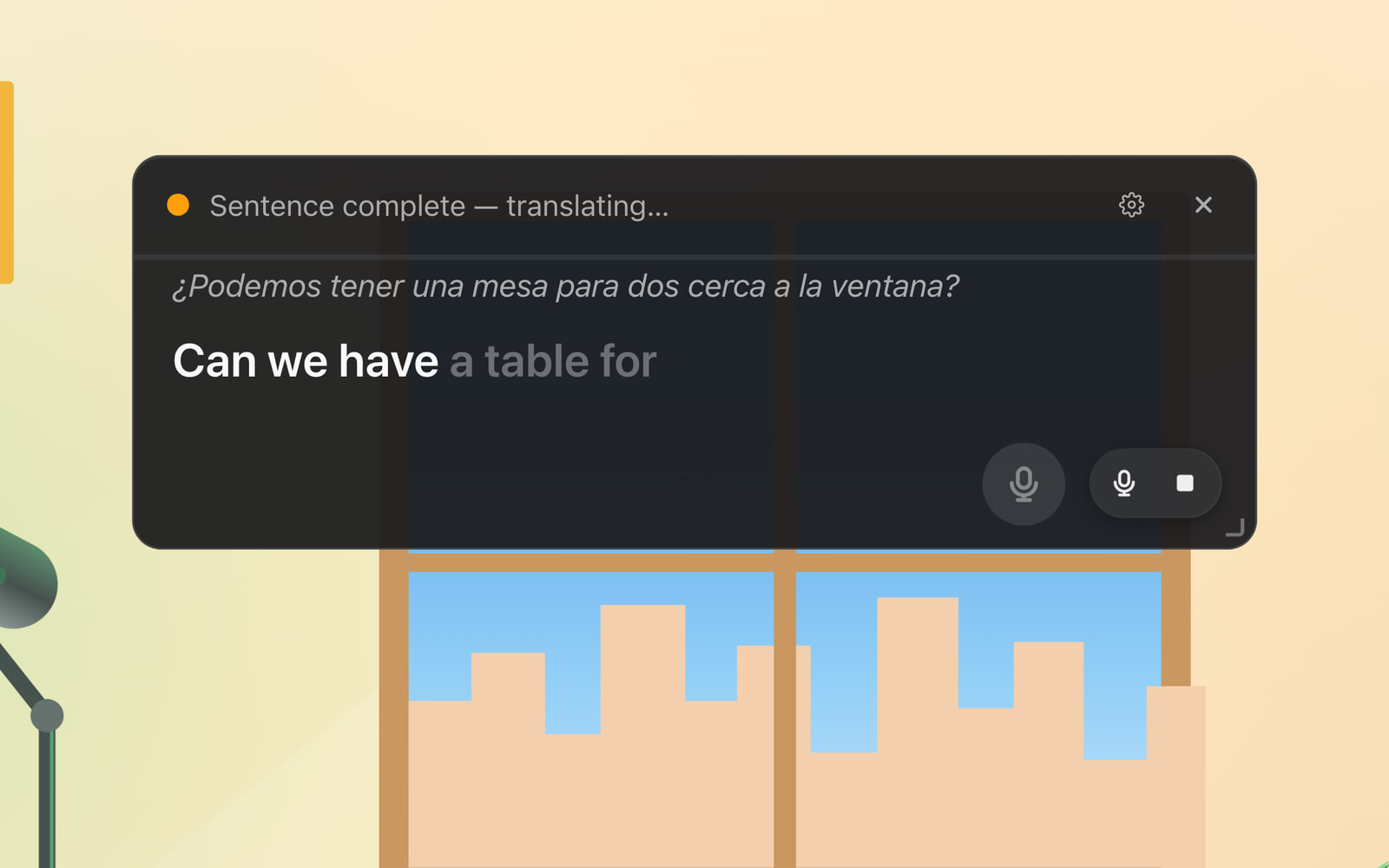
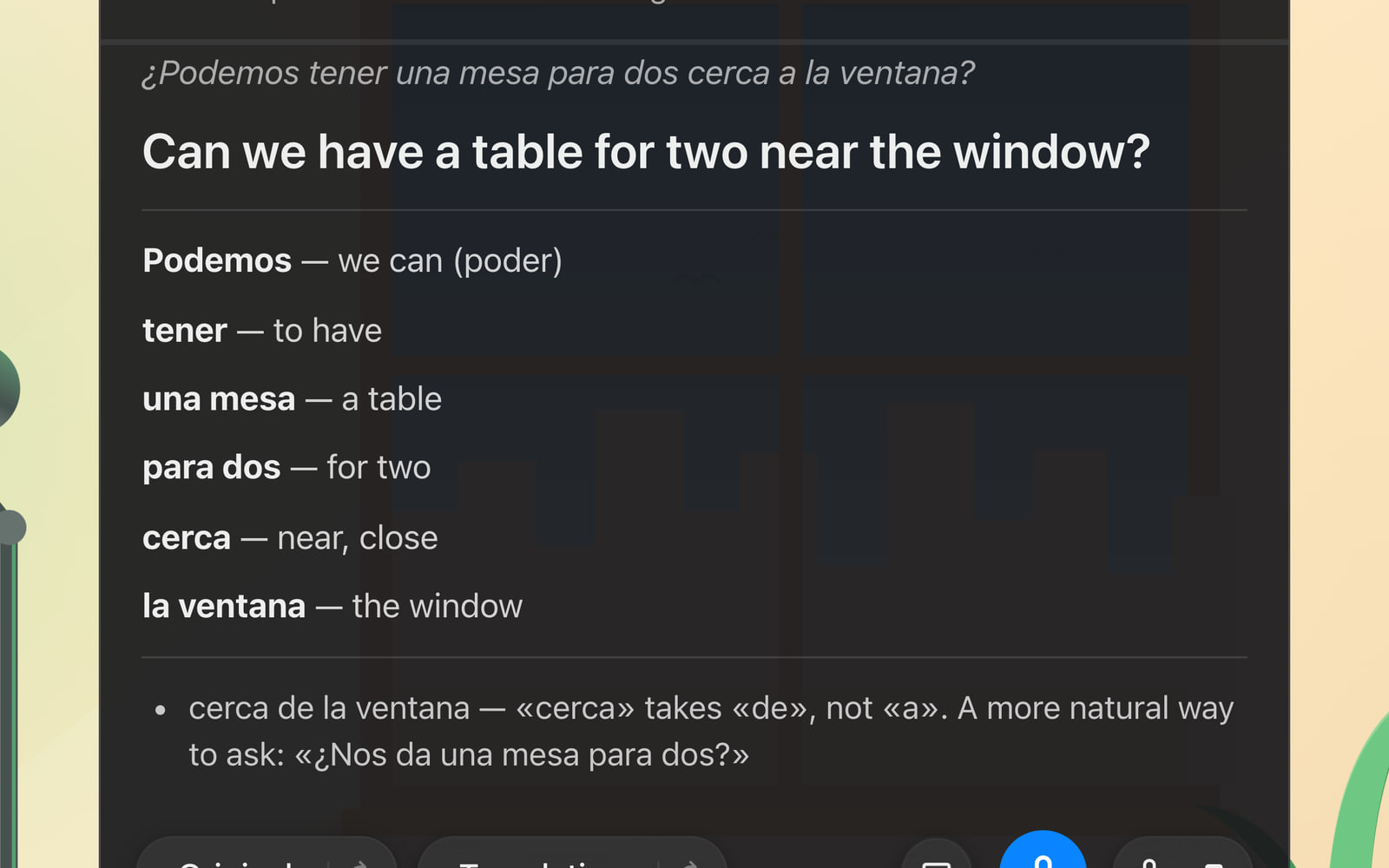
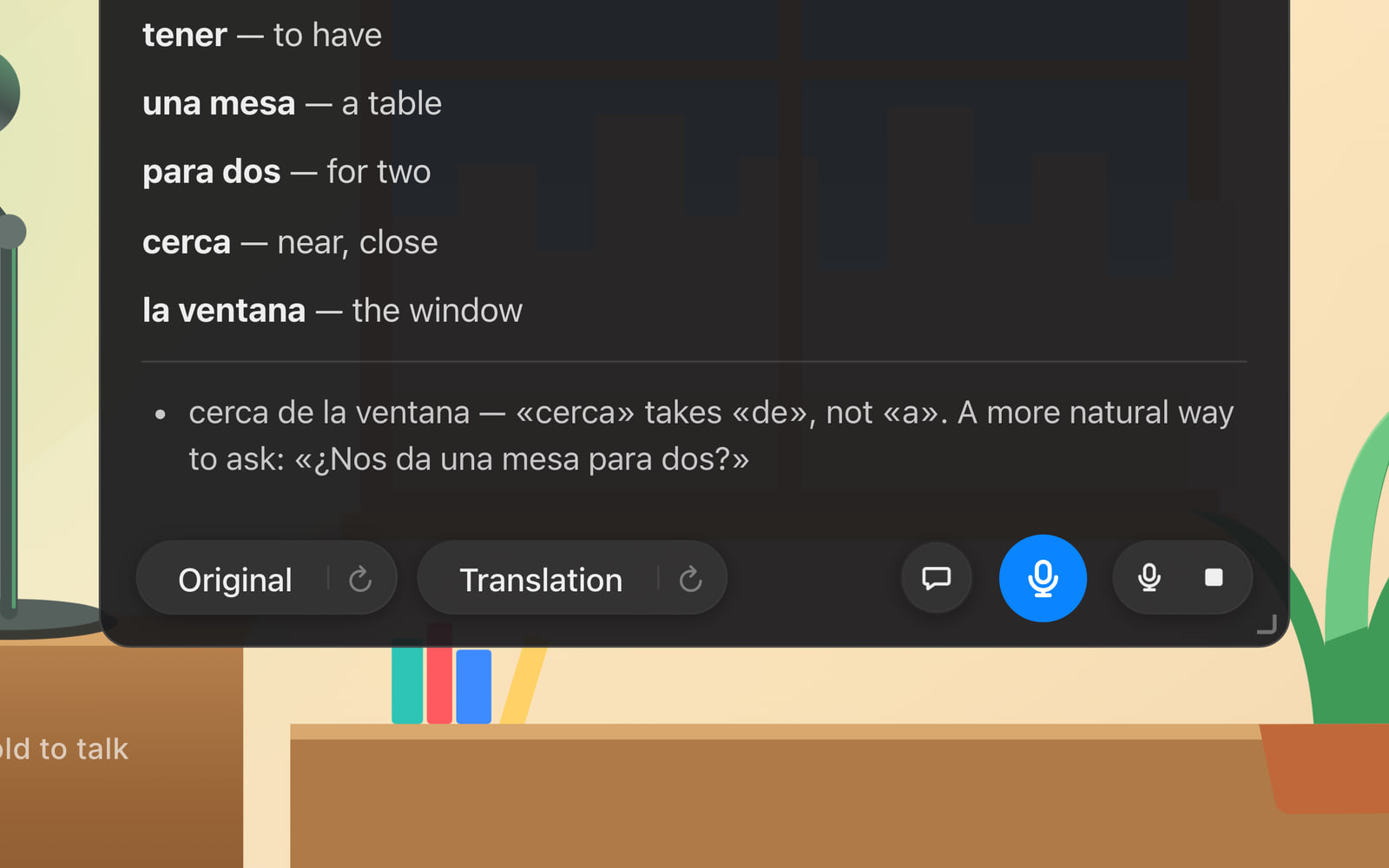
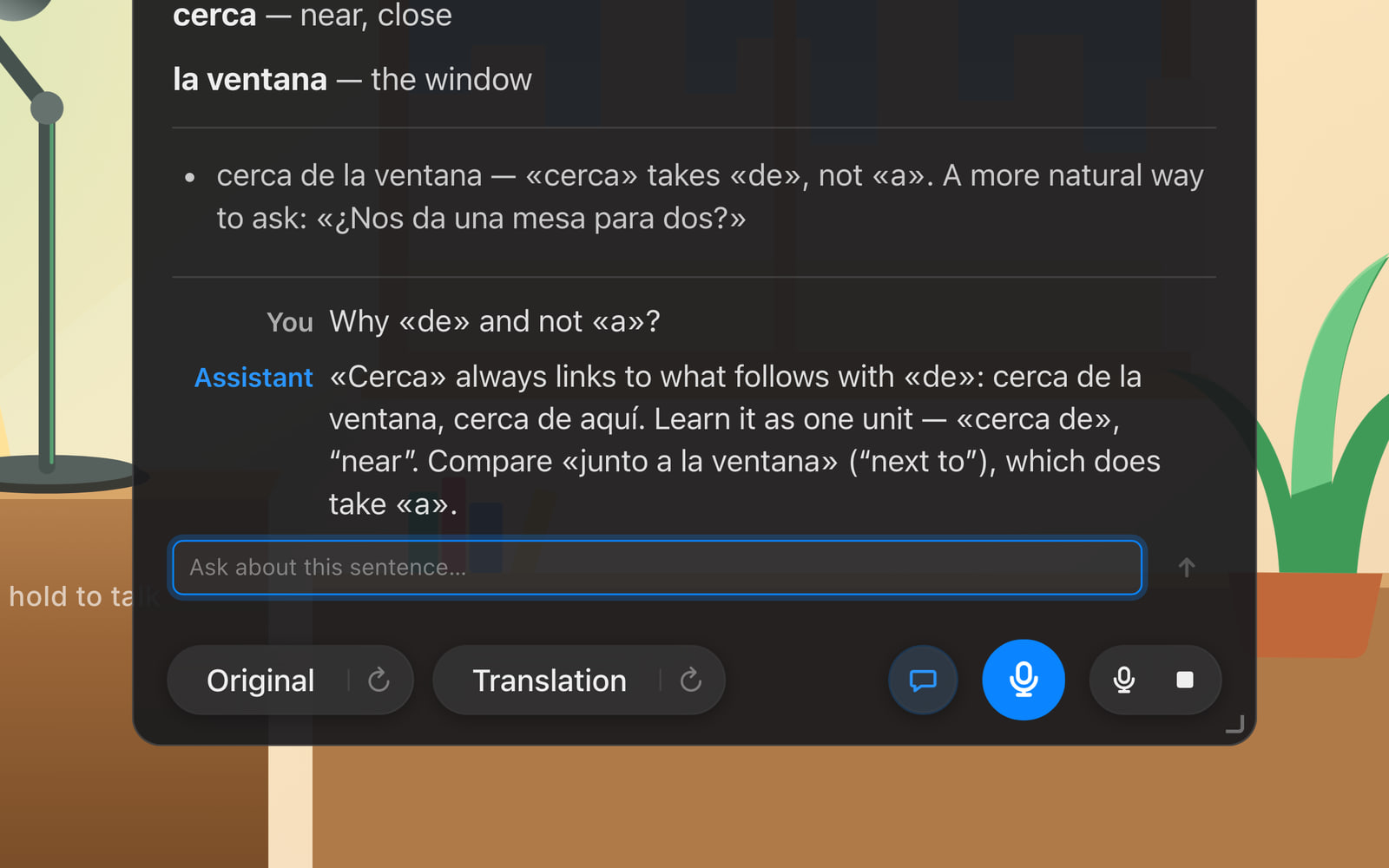
Animated demo of a Speaking session in push-to-talk mode: an English speaker practicing Spanish — drawn as a woman at her desk speaking into a microphone, next to the app. While the round microphone button is held, a level meter follows her voice and the learner’s Spanish sentence is written out as it was heard: “¿Podemos tener una mesa para dos cerca a la ventana?” On release the app speaks and shows what that meant in English — “Can we have a table for two near the window?” — so the learner can check it came across. The card then lists every word they used (Podemos, tener, una mesa, para dos, cerca, la ventana) and gives one correction: “cerca de la ventana” — “cerca” takes “de”, not “a” — with a more natural way to ask, “¿Nos da una mesa para dos?” The learner replays their own sentence with a word-by-word highlight, then asks in the chat, “Why «de» and not «a»?”, and gets a short explanation.
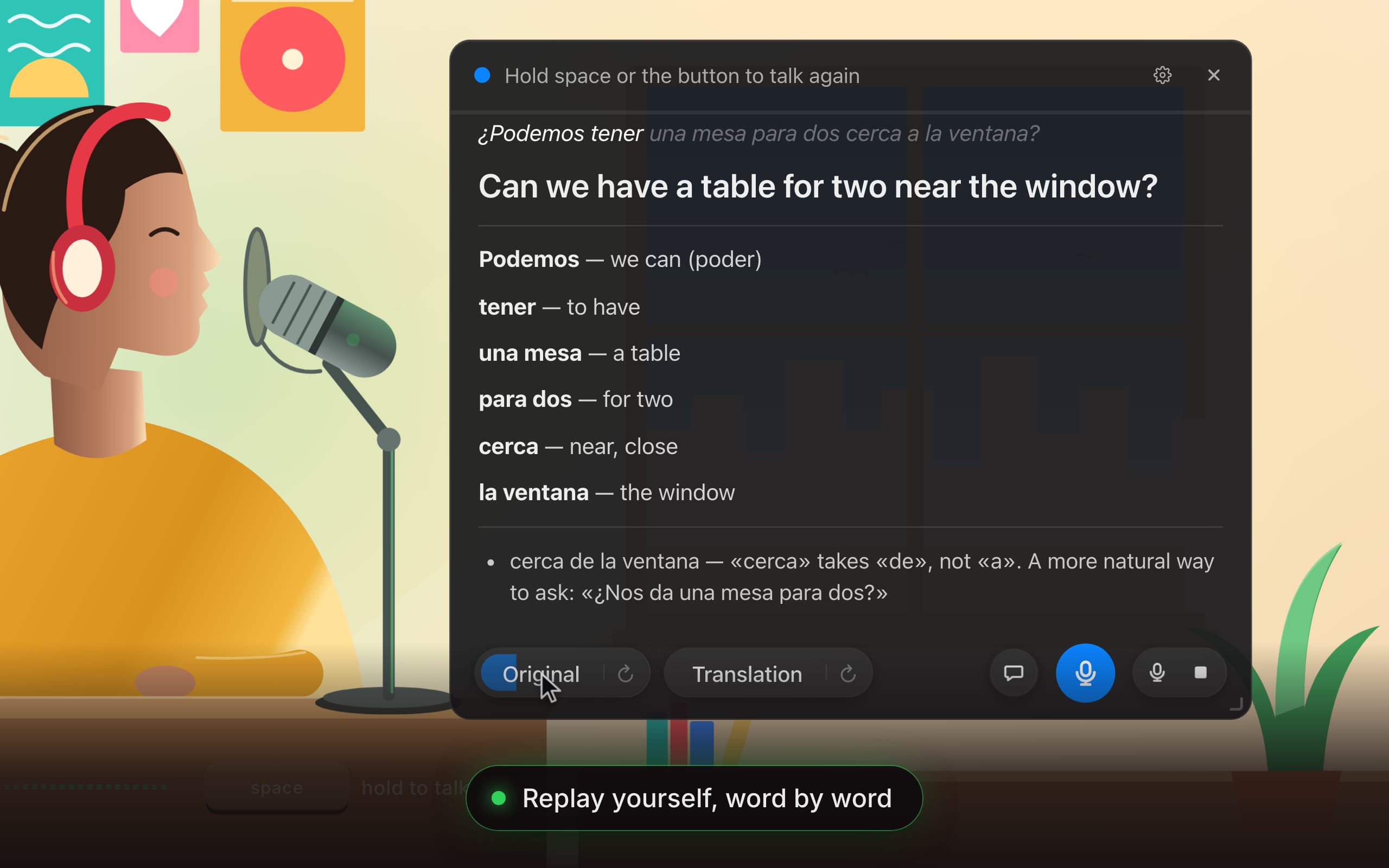
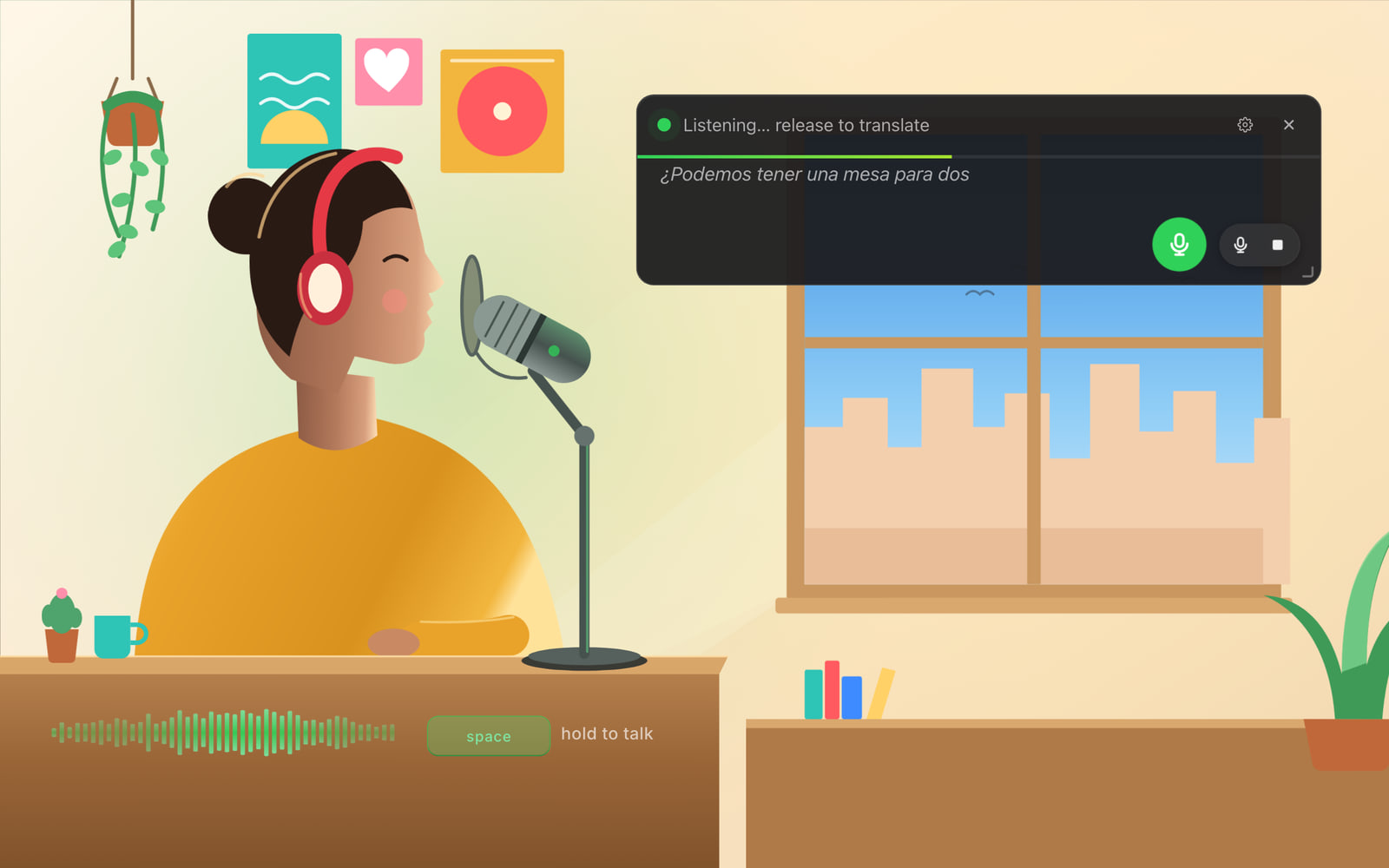
The app’s real interface, animated: hold to talk, say it in the language you’re learning, release — and the card arrives.

How it works

Four steps from hold to understood.

  1. Choose Speaking and allow the microphone

    In the floating card, select Speaking. The first time, press Grant… so macOS lets the app use your microphone. Pick any microphone — built-in, USB, Bluetooth or a nearby iPhone — and watch its live level to see that you are heard.

  2. Set your two languages

    Input language is the one you will speak — the language you are learning. Output language is the one you want it translated back into. Any pair of the 57 languages.

  3. Hold space and say a sentence

    Press Start Speaking, hold the spacebar or the round microphone button, say your sentence, and let go. Prefer hands-free? Switch to Auto and the app hears where each sentence ends.

  4. Read the card, then ask why

    The card shows what the app heard you say, the translation back into your language — spoken aloud, so you know it meant what you intended — every word you used with its meaning, and one correction. Replay yourself, ask the chat why, and say the next one.

Speaking needs the Microphone permission, and Accessibility so the spacebar works as push-to-talk while another app has focus. It never records your screen, and the microphone is used only during a Speaking session.

01 · Push-to-talk or hands-free

Hold space. Say it. Let go.

Hold the spacebar — from any app — or the round microphone button, say your sentence, release. Nothing is sent unless you are holding, so you can think before you speak, and a noisy room never becomes a sentence. Or switch to Auto and simply talk.

  • Hold space, from anywhere. The key works while another app has focus. A short tap on the mic button latches it for people who can’t hold a key.

  • Nothing clipped. A sliver of audio from just before you pressed is included, so a word you started a beat early is not lost. A take ends by itself after 60 seconds.

  • Auto, for a rhythm. The app finds the end of each sentence and, once the translation has been spoken, listens again by itself: speak, listen, speak.

A learner at her desk holding the space key while she speaks Spanish into a microphone; the app’s level meter follows her voice and her sentence appears as it is heard: “¿Podemos tener una mesa para dos cerca a la ventana?”
Holding space: the level meter follows the voice and the sentence appears as it is heard.

02 · Transcribed, then translated back

Did it mean what you meant?

The card first shows your sentence written out exactly as it was heard — a quick check on whether you were understood. Then the translation back into your own language, spoken aloud. If it says what you meant, you said it right. If it doesn’t, you know precisely where.

  • As heard, not as hoped. The transcript is honest. A word that came out wrong shows up wrong, which is exactly what you need to see.

  • Spoken back to you. The translation plays aloud as its text lights up, in the voice and at the pace you choose.

  • Replay yourself. Your own sentence and the translation, side by side, with the word-by-word highlight.

The card after releasing the key: the Spanish sentence as heard and, lighting up word by word as it is spoken aloud, its English translation “Can we have a table for two near the window?”
The Spanish sentence as heard and, lighting up as it is spoken, its English translation.

03 · Every word you used

Your sentence, glossed.

Your own sentence, glossed word by word in the order you said it: the verb form you reached for, the phrase that worked, the article you guessed. It is the vocabulary list of your own speech — the words you actually have, not the ones a course thinks you should.

  • Linked to your sentence. Point at a word on the card and its line lights up, and the other way round.

  • Phrases as units. “una mesa”, “para dos”: the card groups what belongs together, the way you would remember it.

Every word the learner used, glossed: Podemos — we can (poder); tener — to have; una mesa — a table; para dos — for two; cerca — near, close; la ventana — the window.
Every word the learner used, with its meaning.

04 · One correction

Not a wall of red ink. One fix.

A patient coach doesn’t hand you a page of red ink. The card gives you the single most important fix in what you said, with the corrected phrase and often a more natural way to put it. Nothing to fix? It names the pattern you used best, so you know what to keep.

  • The mistake that matters. “cerca de, not cerca a” — one point, explained, instead of ten you won’t remember.

  • The natural version. How a native speaker would actually ask it, when yours was correct but stiff.

  • Encouragement is information too. When the sentence was right, the note tells you what you did well.

The one correction on the card: “cerca de la ventana — «cerca» takes «de», not «a». A more natural way to ask: «¿Nos da una mesa para dos?»”
The one correction: «cerca» takes «de», not «a» — and a more natural way to ask.

05 · Ask why

Ask the coach why.

Why «de» and not «a»? Would the subjunctive be better here? How would you say this to a friend? Open the chat under the card and ask about your own sentence. The answer knows what you said, what you meant and what was corrected — and stays with the sentence in your history.

  • About your sentence. No pasting, no context to explain: the chat starts from the card.

  • Kept for later. Questions and answers are saved with the sentence, ready to re-read before the next attempt.

Chat about a sentence
The chat under the card: the learner asks “Why «de» and not «a»?” and the answer explains that «cerca» always links with «de», compared with «junto a».
The learner asks why «de» and not «a»; the chat explains, with a comparison.

Who it’s for

Your voice matters. Use it.

Understanding is half of a language. Speaking is for the other half — wherever you happen to be practicing it.

Students

Say it out loud before the oral exam, the trip, the first date.

  • Ten minutes a day of actually producing the language — the half of learning a textbook can’t do for you.
  • Mistakes are expected here. You get one at a time, with the corrected phrase, never a wall of red ink.
  • Every sentence you said is kept with its audio, so you can hear yourself improve.

Teachers

Turn a spoken sentence into board work.

  • On the projector, a sentence said by you or a student comes back transcribed, translated and glossed word by word — in seconds, for the whole class to see.
  • The one correction is a starting point for the discussion, not a verdict.
  • Saved sessions keep the sentences and the audio for the next lesson.

Creators

Document your own progress, in your own voice.

  • Talk to the camera in the language you are learning and let the card show your sentence, its translation and the fix — the overlay your viewers pause for.
  • Replay your own sentence next to the spoken translation with the highlight running.
  • Copy what you need from the saved session into your script.

Also worth knowing

The small things that make it work.

  • No headphones needed

    A microphone hears your speakers. The app closes the microphone while it speaks or replays a clip, and for a moment after, so its own voice is never translated as your next sentence.

  • Pick the right microphone

    The picker lists every input with a live level bar. Set Noise reduction to Far mic for a laptop or conference microphone, Near mic for a headset or earbuds.

    Choose and test your microphone
  • Mute, and quiet moments

    Mute for a cough or a phone call. In Auto mode a long silence puts the session on standby; it wakes when you speak. In push-to-talk, waiting for a press is simply the normal state.

  • Routines for practicing alone

    Describe your day, retell a scene from the show you are watching, answer the questions you expect at the interview — the guide has routines to start from.

    Practice routines

Questions

Fair questions, plain answers.

Something else? Write to [email protected] — a person answers.

What exactly do I get back after I speak?

Four things, on one card: what the app heard you say, written out in the language you spoke; the translation back into your own language, written and spoken aloud, so you can check it means what you intended; every word you used, with its meaning; and one note — the most important mistake in the sentence with the corrected phrase, or, when there is nothing to fix, the pattern you used best. You can replay your own sentence word by word and ask the chat why.

Does it correct my pronunciation?

It does not grade pronunciation. What it shows is what was understood: the transcript is what the app heard, so a word that came out wrong shows up wrong — or as another word — in the transcript and in the translation. That is the most honest check there is on whether you were understood, and the replay lets you hear yourself next to the app’s voice.

What is the difference between push-to-talk and Auto?

Push-to-talk, the default: hold the spacebar — from any app — or the round microphone button while you speak, and release to translate. Nothing is sent unless you are holding. A short tap on the button latches it for people who cannot hold a key. Auto: just talk, and the app finds the end of each sentence the way a Listening session does; after the spoken translation finishes, the microphone re-arms by itself so you can keep a rhythm going.

Do I need headphones?

No. The microphone would hear the app’s own spoken translation, so the app closes it while it speaks or replays a clip and for a brief moment afterwards while the sound dies away in the room. A headset does give the cleanest result, and the Near mic noise-reduction setting is made for one.

Which languages can I practice speaking?

Any of the 57 languages RainbowSay works with — Spanish, French, German, Italian, Japanese, Korean, Chinese, Hindi, Arabic and many more — translated back into any other of them. The input language is the one you speak; the output language is the one you want to be understood in.

The full list of languages

Which microphones work?

Any input macOS knows: the built-in microphone, a USB or Bluetooth headset, a lapel mic, an iPhone used as a microphone via Continuity. The picker shows a live level for each one while it is open, so you can see which one hears you, and Noise reduction is set per microphone type — far field for a laptop or a conference mic, near field for a headset.

Is my voice recorded?

Each sentence you say is saved with its audio clip in your study history on your Mac — that is what lets you replay yourself later — and you can delete any of it. While a session is running, the audio is processed by our AI provider, OpenAI, to transcribe and translate it. Nothing is uploaded to RainbowSay’s own servers but usage totals for billing.

Read the privacy policy

How is Speaking different from Listening?

Same card, different source. Listening hears a video or podcast and explains the sentences other people say; Speaking hears your microphone and explains the sentence you said — with one correction instead of a grammar note. Both share the chat, the replay and your study history, and one allowance pays for either.

About Listening

Is Speaking free?

Every new account gets one-time starter credit — no credit card — to spend on Speaking, Listening or Subtitles. When it is used up, you pick a plan in the app. Students, teachers and creators can email [email protected] for extra free credit first.

See plans and pricing

Understanding is half. Say the other half.

Download RainbowSay, hold space, and say the first sentence. One gentle correction at a time.

Start practicing out loudFree to start · macOS app · Apple Silicon

No credit card · audio only, never your screen · your history stays on your Mac