Subtitles · Eyes + ears

Live translated subtitles, over anything.

Subtitles is RainbowSay’s live translation session. It transcribes whatever your Mac is playing — a film, a stream, a Zoom call — or whatever you say into a microphone, and shows the original line plus a translation in up to three languages, in a transparent window that floats over everything. Nothing pauses. The spoken language is detected for you.

Turn on live subtitlesFree to start · macOS app · Apple SiliconSee how it works
  • Free to start · no credit card
  • 13 languages · spoken language auto-detected
  • Saved as a transcript · export SRT

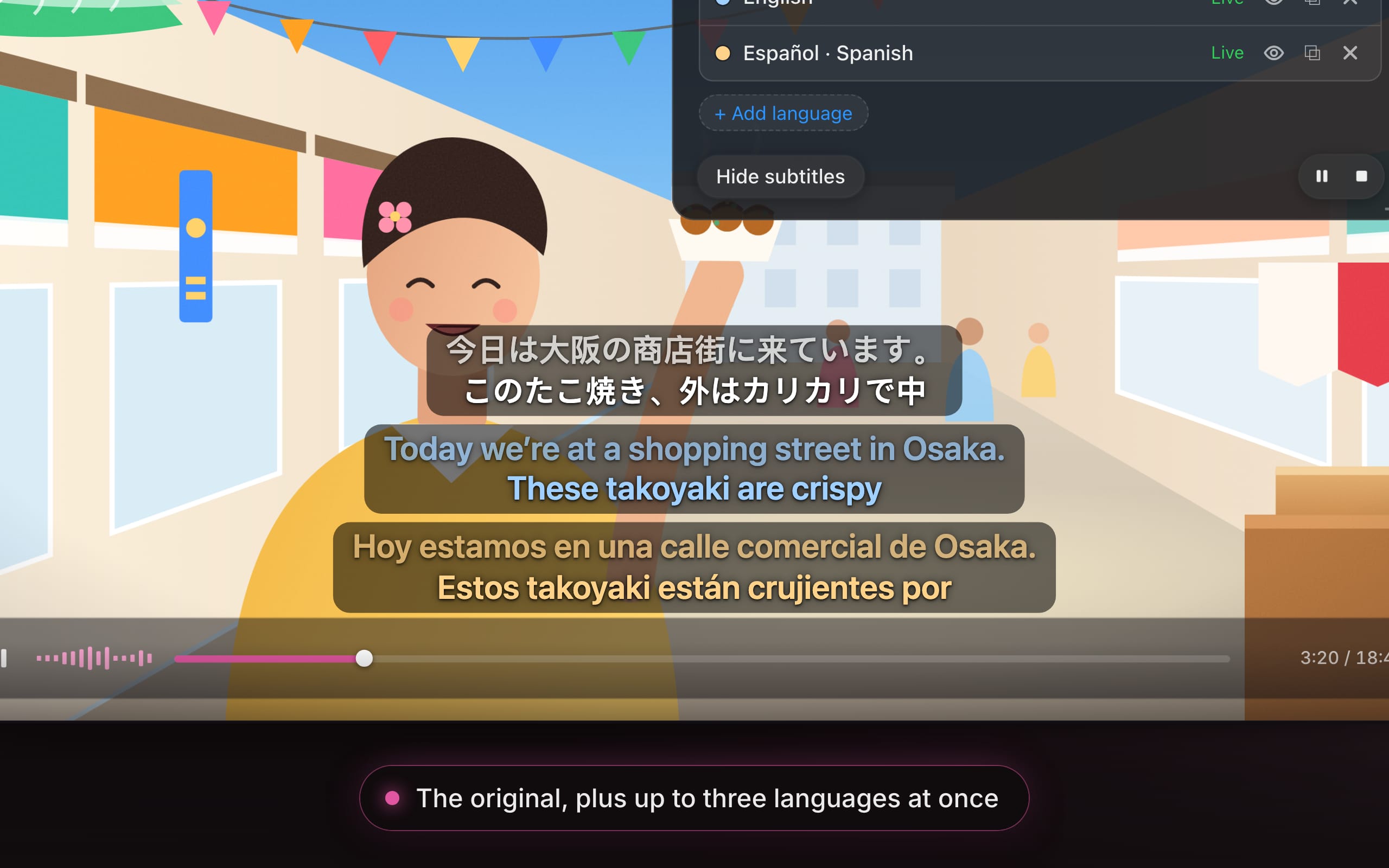
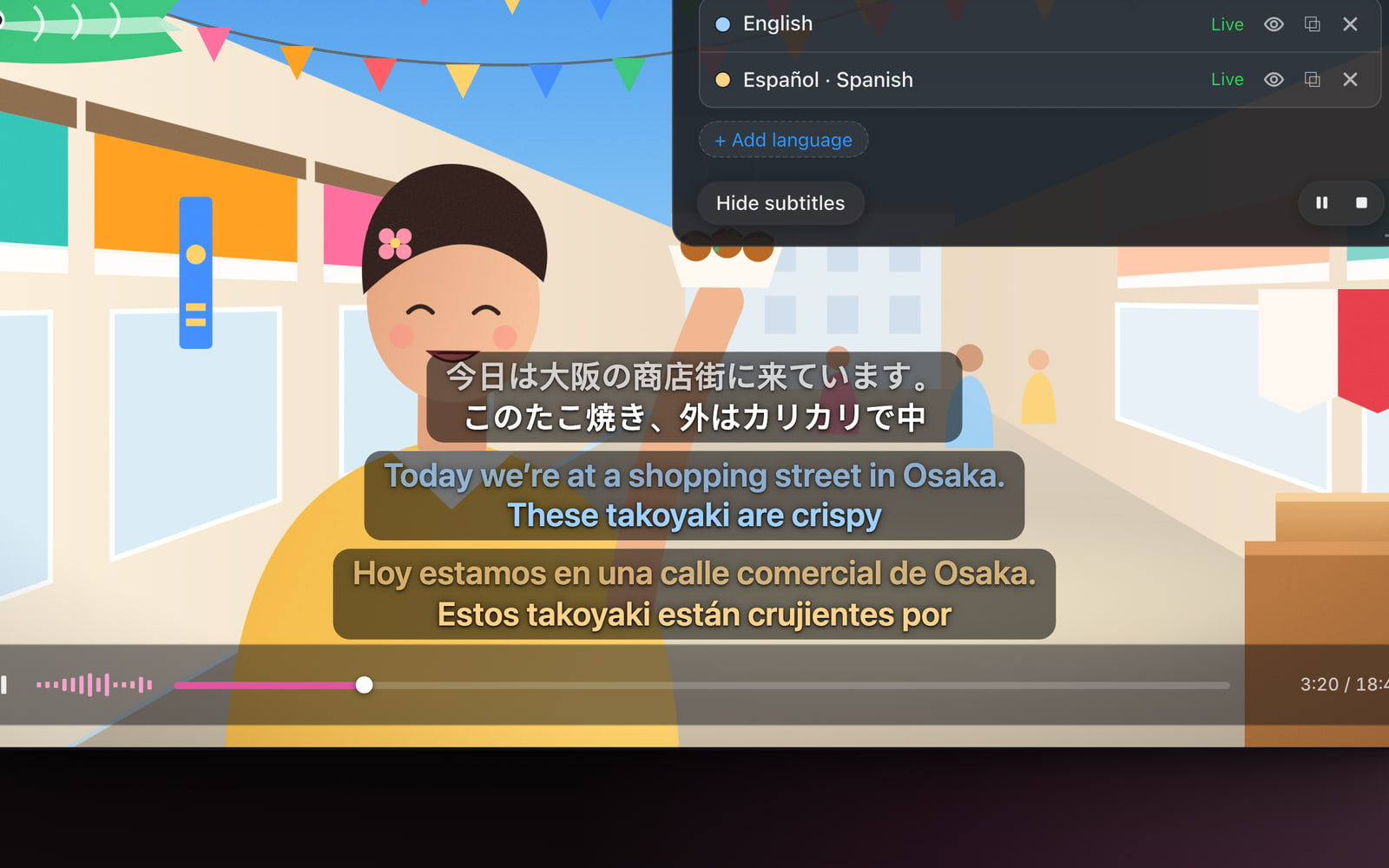
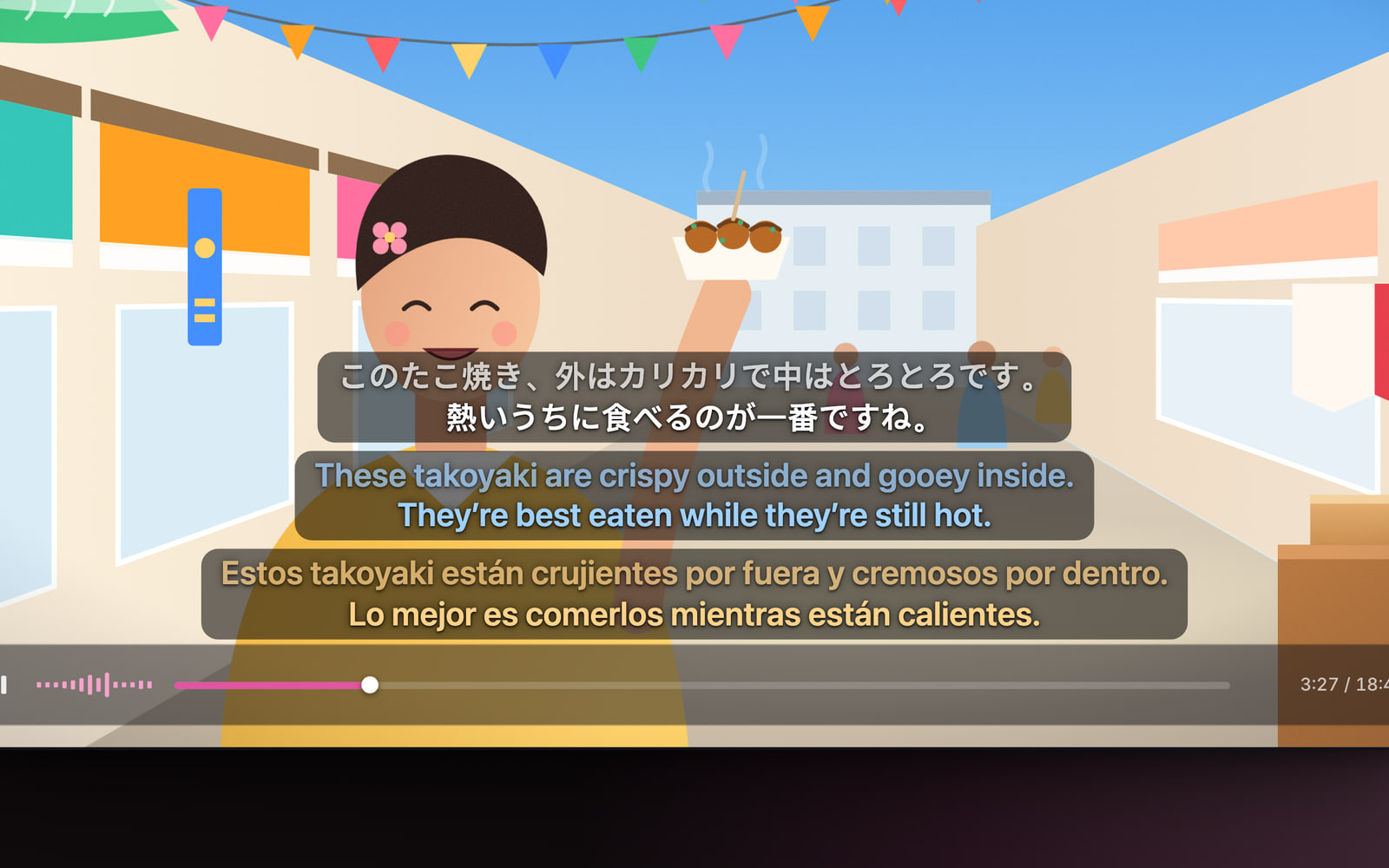
Animated demo of a Subtitles session. A Japanese food vlog plays in a video player while a transparent caption window over the lower part of the video streams three lines word by word: the original Japanese, English and Spanish. The speaker says “今日は大阪の商店街に来ています。” (“Today we’re at a shopping street in Osaka.” / “Hoy estamos en una calle comercial de Osaka.”), then “このたこ焼き、外はカリカリで中はとろとろです。” (“These takoyaki are crispy outside and gooey inside.”), then “熱いうちに食べるのが一番ですね。” (“They’re best eaten while they’re still hot.”). Finished sentences move up to a dimmed line as the next one starts. The app’s overlay lists the two translated lanes, English and Spanish, as live; it is then closed with its close button and the subtitles keep running over the video.

The app’s real interface, animated: the original line and its translations stream in as people speak, over the playing video.

How it works

Four steps to reading along.

  1. Choose your subtitle languages

    In the floating card, select Subtitles. Under Subtitle languages, keep or add the languages you want to read — 13 to choose from, one at a time on the Free plan and up to three at once on a paid plan. The spoken language is detected automatically; there is nothing to set.

  2. Pick the source

    System captions what your Mac plays — everything, or a single app such as your meeting app or your player. Microphone captions you: what you say to a class, an audience or a camera.

  3. Press Start Subtitles

    A transparent caption window appears on top of everything — fullscreen video included — and fills with the original transcript and its translation as people, or you, speak. Nothing pauses.

  4. Place it, read along, keep it

    Drag the window where you want it, pop a language out into its own window, hide the panel. Afterwards the session is saved as a time-marked transcript with its audio: replay any line, copy the text or export SRT.

Captioning what your Mac plays needs the “System Audio Recording Only” permission; captioning your own voice needs the Microphone permission. Each is asked for the first time it is needed. The app never records your screen.

01 · Real-time transcription and translation

The original line, plus up to three languages.

As someone speaks, the words appear: the original line on top, and under it a translation in each language you chose — streaming word by word, a few seconds behind the voice. Finished sentences move up to a dimmed line as the next one starts. 13 languages, and the spoken one is detected for you.

  • The original, always. The top line is the transcript of what is being said — the reading practice is built in. Turn it off when the room can already hear the original.

  • Up to three translations at once. Each language is its own live lane, in its own color, with its own show/hide toggle.

  • No language to set. The spoken language is detected automatically, so a conversation that switches languages keeps its captions.

Subtitles in several languages
The caption window over a Japanese food vlog: the original line 今日は大阪の商店街に来ています。 with its English and Spanish translations streaming underneath, each language in its own color.
The caption window over a Japanese vlog: the original line with English and Spanish streaming underneath.

02 · The caption window

Transparent, always on top, anywhere.

Transparent, always on top, no chrome until you point at it. It floats over fullscreen video, over a call, over a slide. Drag it anywhere and it remembers the spot; it is anchored at its bottom edge, so a caption that grows to two lines rises instead of sliding off the screen.

  • A pill, or nothing. Each line sits on a translucent dark pill so it stays readable over bright video — or make the window fully transparent.

  • Pop a language out. Any lane can become its own window and go to the screen that needs it: one language on the projector, another on the display by the door.

  • Hide and show, mute and stop. The panel hides every caption window without stopping, mutes for an ad or a private word, and stops only after the last sentence has landed.

Subtitle appearance
The panel closed: only the transparent subtitles remain over the playing video — the Japanese original on top, English and Spanish below — and the video never pauses.
The panel closed: only the transparent subtitles remain over the playing video.

03 · Calls and meetings

Zoom, Meet, Teams — translated as they talk.

Join the call as usual. Choose System and pick your meeting app, so only the call is captioned — not your music, not a notification. The people speaking on Zoom, Meet, Teams or FaceTime are transcribed and translated as they talk, in a window you drag under the speaker’s video.

  • One app, not everything. Caption a single app from the list, and nothing else your Mac plays gets in.

  • Mute the parts in your language. Muted time is never sent and never billed.

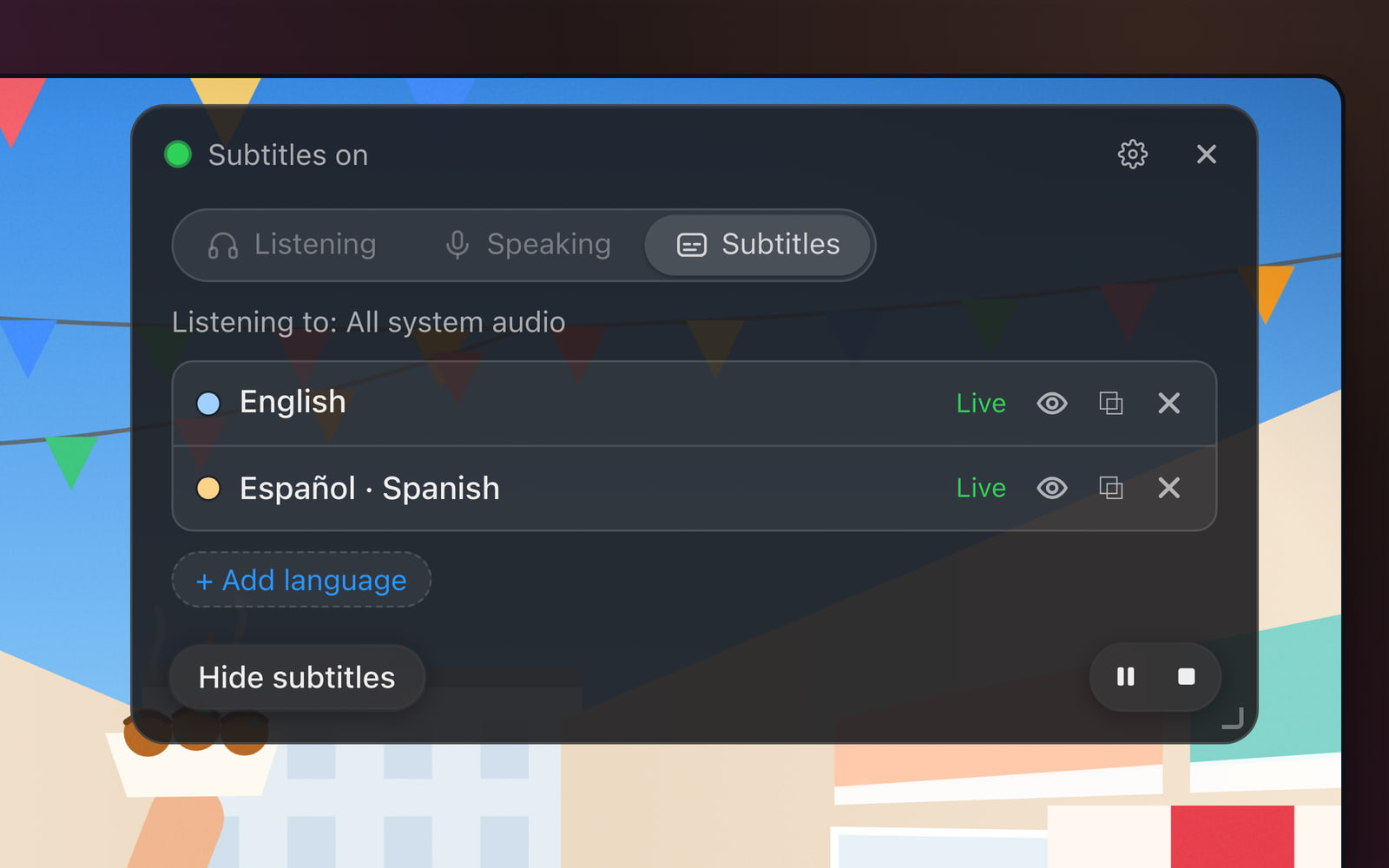
  • Live lanes you can see. The panel lists each language with its state — Connecting…, Live, Reconnecting…, Paused — so you always know where you stand.

The app’s running panel during a Subtitles session: “Subtitles on”, the English and Spanish lanes listed as Live, with the Hide, Mute and Stop controls.
The running panel: “Subtitles on”, the English and Spanish lanes live, with Hide, Mute and Stop.

04 · From your microphone

Translate for your audience, live.

Subtitles can listen to you instead of your Mac. Choose Microphone as the source, speak the way you always do, and everyone in the room — or on the stream — reads along in their own language: your words on the Original line, the translations beneath.

  • Teach in your own words. Explain, give instructions, tell the story: what you say appears on the projector as you say it, translated underneath.

  • Any microphone. Laptop, headset, lapel or an iPhone via Continuity — pick it from the list with its live level, and set noise reduction to match the room.

  • Nothing to hold, nothing to set. No push-to-talk, no language to choose: start talking.

How to caption your own voice
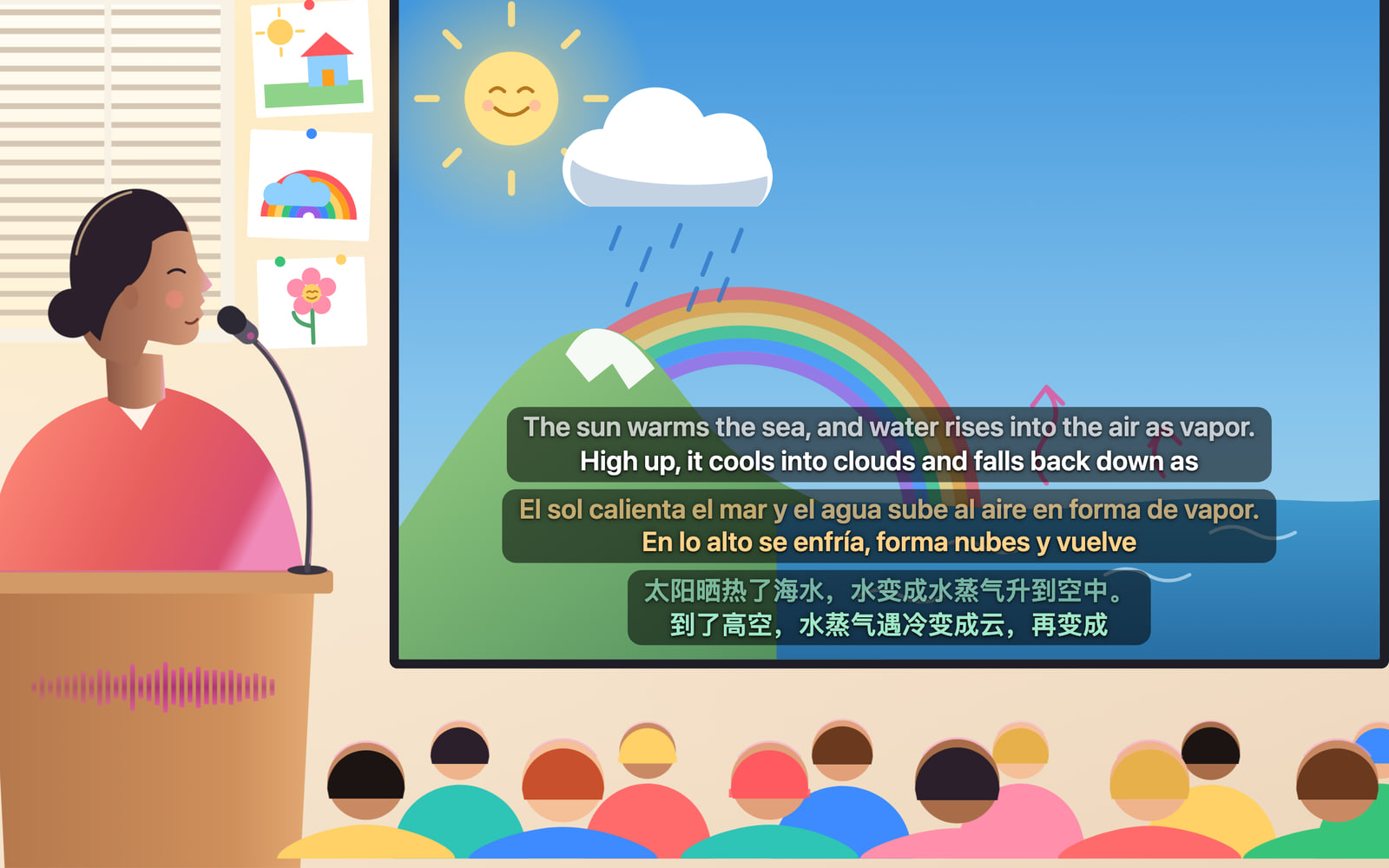
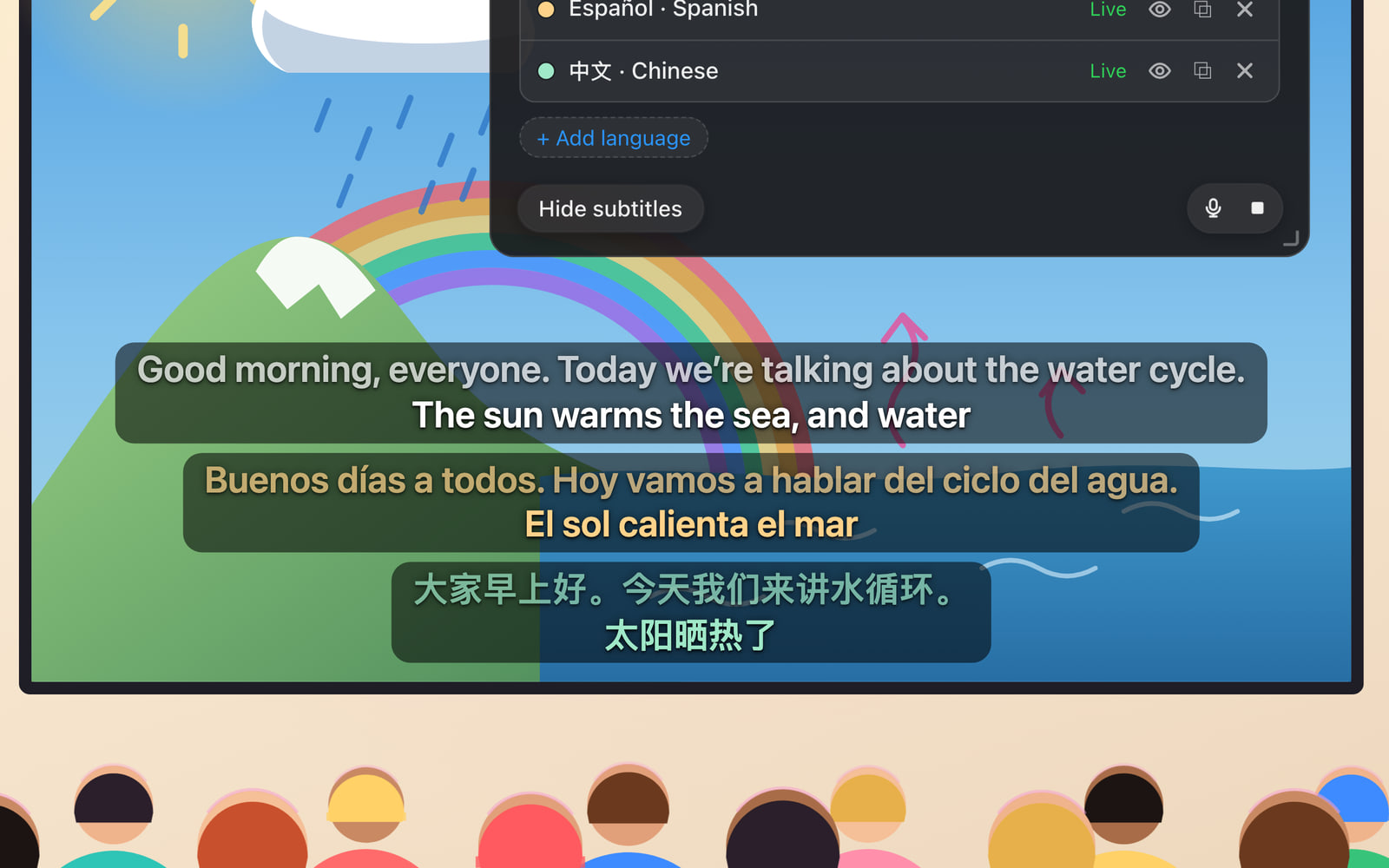
A teacher at a lectern beside the projector screen; what she says appears on the screen as live captions in English, Spanish and Chinese for the class in front of her.
A teacher at the lectern; what she says appears on the projector screen in English, Spanish and Chinese.

05 · Made for a room

Readable from the back row.

Readable from the back row: raise the text size and the window width, give each language its own color so every reader finds their line at a glance, and send a language to its own window on the screen that needs it. Pauses are free — while the class works quietly, nothing is used.

  • Big, and in color. Text size, width as a share of the screen and per-language colors, with a live preview in Settings.

  • A window per language. Spanish on the projector, Vietnamese on the display by the door.

  • Standby in ten seconds. After about ten seconds of silence the session stands by and wakes with your next word; muted time is free.

On a projected slide about the water cycle, live captions of a teacher’s voice: her English sentence on top, Spanish and Chinese translations beneath it.
On the projected slide: the teacher’s English sentence with Spanish and Chinese beneath it.

Who it’s for

Read along, live.

Live captions are for following along — whoever is speaking, and whoever needs to read.

Viewers and learners

A film with no subtitles in your language. A broadcast you can’t pause.

  • Live things — a stream, a lecture, a webinar — captioned and translated as they happen.
  • Reading practice at native speed: follow the Original line in the language you are learning, and glance at the translation only when you are lost.
  • Want to stop and study a sentence instead? That is a Listening session, in the same app.

Teachers and presenters

One room, several languages.

  • Put the caption window on the projector: what you say appears as you say it, with a translation underneath in up to three languages, each in its own color — or its own window on the screen that needs it.
  • Play a clip for the class and caption that instead: switch the source from Microphone to System.
  • Afterwards, copy the transcript in any language for a handout or lesson notes.

Creators

Captions for what you make, in two languages, timed to your voice.

  • Talk to the camera or to your stream with live transcription and translated captions on screen, in your colors, size and position.
  • Record your screen with the captions on it — or export the saved session as an SRT file, timed as spoken or aligned to the original, to caption the recording later.
  • Copy the transcript into your script or description.

Also worth knowing

The small things that make it yours.

  • Saved as a transcript

    Every session is kept on your Mac as a time-marked timeline with its translations and, by default, the audio. Replay any line in any language, copy the transcript, export SRT.

    Review saved subtitle sessions
  • Silence costs nothing

    After about ten seconds without speech the session stands by and sends nothing; it wakes with the next word. Muted time is free too. Left alone for a quarter of an hour, it ends by itself — the limit is yours to set.

    Silence, standby and auto-end
  • Translations only, if you like

    Your listeners can already hear the original. Turn off Show original line and the translations get the whole window.

  • Your colors, your size

    Text size, width as a share of the screen, a translucent pill or none, and a color per language — with a live preview in Settings.

    Subtitle appearance

Questions

Fair questions, plain answers.

Something else? Write to [email protected] — a person answers.

Does it work with Zoom, Google Meet, Teams or FaceTime?

Yes. Subtitles caption any app’s audio, so the people speaking on a call are transcribed and translated as they talk. In the session options choose System and pick your meeting app from the list, so only the call is captioned — not your music or notification sounds — then drag the caption window under the speaker’s video. A session has one source: it captions the call or your own microphone, not both at once. The call’s audio is sent to the AI service for translation while Subtitles are on, so make sure that is fine for the meeting you are in.

Which languages can the subtitles translate into?

13: English, Spanish, Portuguese, French, Japanese, Russian, Chinese, German, Korean, Hindi, Indonesian, Vietnamese and Italian. The spoken language is detected automatically, so there is no input language to set — one session can follow a conversation that switches languages.

How many languages can I show at once?

The original line plus one translation on the Free plan, plus up to three translations at once on a paid plan. Each language is its own live lane with its own color, and any lane can be popped out into its own window — Spanish on the projector, Vietnamese on the display by the door.

See plans and pricing

Does it slow down or pause the video?

Never. Subtitles are the continuous counterpart to Listening: the video, the call or the stream runs exactly as it would without them. The translation trails the speaker by a few seconds, because it needs to hear enough of a sentence to translate it, and finished sentences move up to a dimmed line as the next one starts.

Can I subtitle my own voice — for a class, a talk or a stream?

Yes. Choose Microphone as the source, pick your microphone and the noise-reduction setting that matches it, and what you say appears as live captions: your own words on the Original line and a translation under it in each language you chose. Put the window on the projector, a shared screen or in a recording. Afterwards you have a transcript in every language and an SRT file timed to your voice.

How to caption your own voice

Can I save or export the subtitles?

Every session is saved on your Mac as a time-marked transcript with its translations and, by default, the audio. On the Dashboard’s Subtitles page you can replay any sentence in any language, copy the transcript, or export SRT per language — timed as spoken, or aligned to the original sentence each line translates.

Review saved subtitle sessions

What is the difference between Subtitles and Listening?

Subtitles never pause: they stream a live transcript and translation over the video for reading along at full speed. Listening stops at the end of every sentence and gives you a card to study — translation, vocabulary, grammar, replay, chat. Use Subtitles to follow; use Listening to learn a sentence properly. Same app, same allowance.

About Listening

Does it work over fullscreen video, and is it a browser extension?

It is a Mac app, not an extension, so it is not tied to any site or player. The caption window is transparent and always on top — fullscreen video included — with no chrome until you point at it. Drag it anywhere; it remembers the spot, anchored at its bottom edge so a caption that grows to two lines rises instead of sliding off the screen.

Are the subtitles spoken aloud?

No. Captions are for reading: nothing talks over your film or your meeting. If you want the translation spoken, that is what a Listening session does, one sentence at a time.

Is it free?

Every new account gets one-time starter credit — no credit card — to spend on Subtitles, Listening or Speaking. Subtitles bill by the minute of audio they hear; silence and muted time cost nothing. When the credit is used up, you pick a plan in the app. Students, teachers and creators can email [email protected] for extra free credit first.

See plans and pricing

Which Macs are supported?

Macs with Apple Silicon running macOS 14.2 or later. System audio needs the “System Audio Recording Only” permission; the microphone source needs the Microphone permission. The app never records your screen.

Download and setup

Press play. Read along.

Download RainbowSay, pick your languages, and press play on something — or say something — worth reading along to.

Turn on live subtitlesFree to start · macOS app · Apple Silicon

No credit card · audio only, never your screen · your history stays on your Mac