Listening · Ears

Watch anything. Understand every sentence.

Listening is RainbowSay’s session for learning from what you watch. It hears whatever your Mac is playing — a series, a YouTube video, a podcast, a lecture — transcribes each sentence as it is spoken, pauses the player when the sentence ends, and translates it with the vocabulary and grammar explained. Press Continue, and the story goes on.

Start learning from what you watchFree to start · macOS app · Apple SiliconSee how it works
  • Free to start · no credit card
  • Works with any app that plays sound
  • Audio only — never your screen

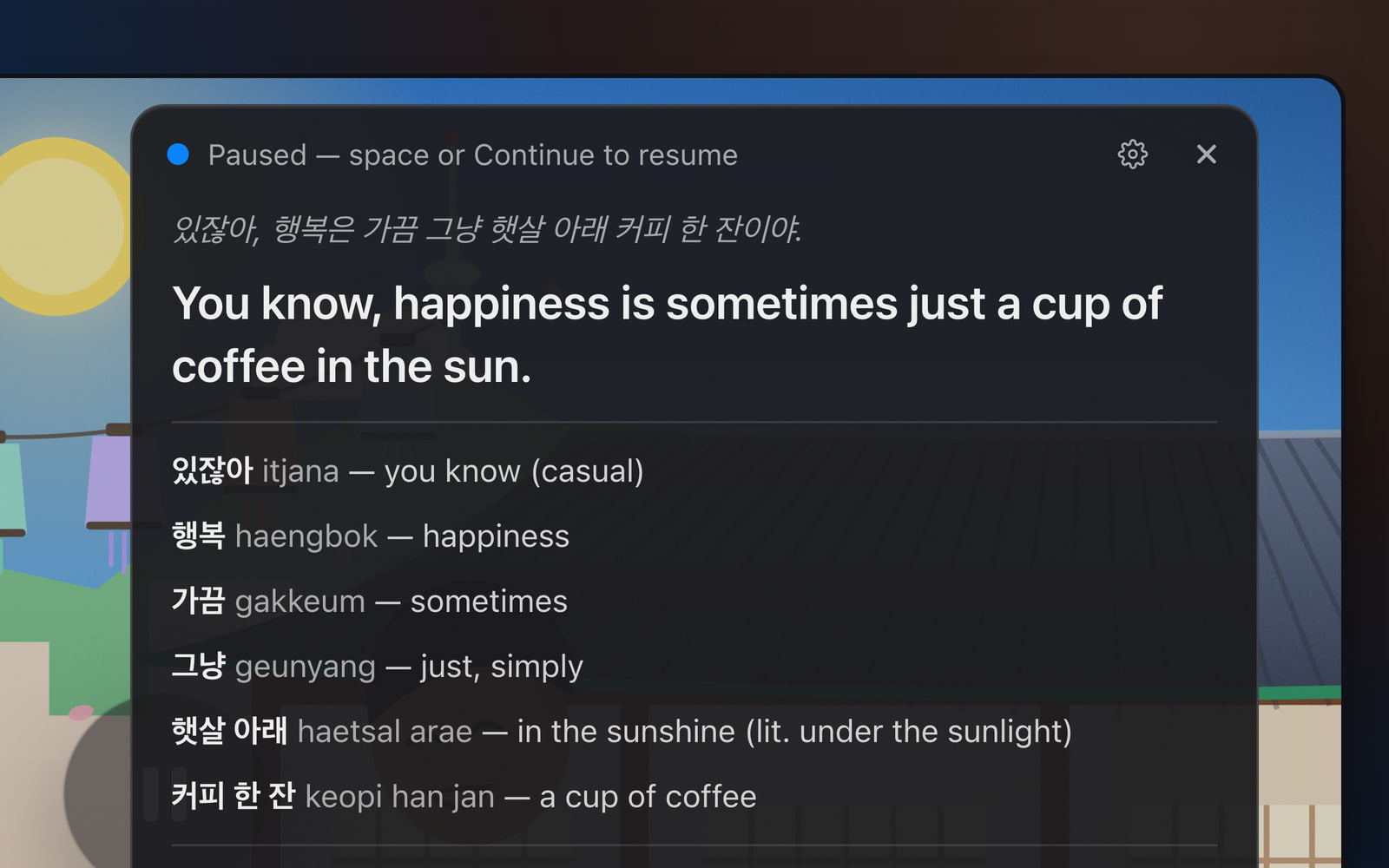
Animated demo of a Listening session. A Korean drama plays in a video player while the app’s overlay transcribes a line of dialogue: “있잖아, 행복은 가끔 그냥 햇살 아래 커피 한 잔이야.” At the end of the sentence the app pauses the video and shows a card with the translation — “You know, happiness is sometimes just a cup of coffee in the sun.” — a vocabulary list with romanized readings (있잖아, itjana, you know; 행복, haengbok, happiness; 가끔, gakkeum, sometimes; 그냥, geunyang, just; 햇살 아래, haetsal arae, in the sunshine; 커피 한 잔, keopi han jan, a cup of coffee) and a grammar note on the casual ending 이야. The original is replayed with a word-by-word highlight, the question “Why 행복은 and not 행복이?” is answered in a chat panel (은/는 marks the topic), and pressing Continue resumes the video.
The app’s real interface, animated: the video plays, the app hears a sentence end, pauses the player and unpacks the sentence.

How it works

Four steps from pressing play to understanding.

  1. Play something you love

    Start a series, a video or a podcast in any app — a streaming app, a browser tab, a lecture recording. If your Mac plays it, Listening can hear it. There is no plug-in and nothing to upload.

  2. Start Listening

    From the menu bar or the floating card, choose Listening and press Start Listening. Pick the language you are learning and the language you want it explained in — any pair of the 57 languages.

  3. The sentence ends; the player pauses

    The app transcribes the dialogue as it is spoken and hears where a sentence is complete — by meaning, not only by a gap in the sound. Then it presses Play/Pause for you, so you are never chasing the dialogue.

  4. Read, replay, ask, continue

    The card shows the sentence as it was said, its translation (spoken aloud too), every word with its reading and meaning, and one grammar note. Replay either sentence word by word, ask a question in the chat, then press Continue or the spacebar.

Listening needs two permissions, asked for the first time they are needed: System Audio Recording Only, to hear what plays, and Accessibility, to press Play/Pause for you and see the spacebar while another app has focus. It never asks for screen recording.

01 · Auto-pause

It pauses for you — at the end of the thought.

Listening transcribes the dialogue live and listens for the point where a sentence is complete — a finished thought, not just a pause for breath. Then it presses Play/Pause for you. No scrubbing back, no hunting for the line you missed.

  • Sentence detection by meaning. The app reads the transcript as it forms and waits for the thought to close. How eager it is, and how long a sentence may run, are yours to tune.

  • Space means “translate now”. A speaker rambling? Cut in: the player pauses right there and the card explains what has been said so far.

  • Ads and songs skipped. Music, singing and noise are never translated — the video just resumes. For an ad break, press suspend.

Tune sentence detection
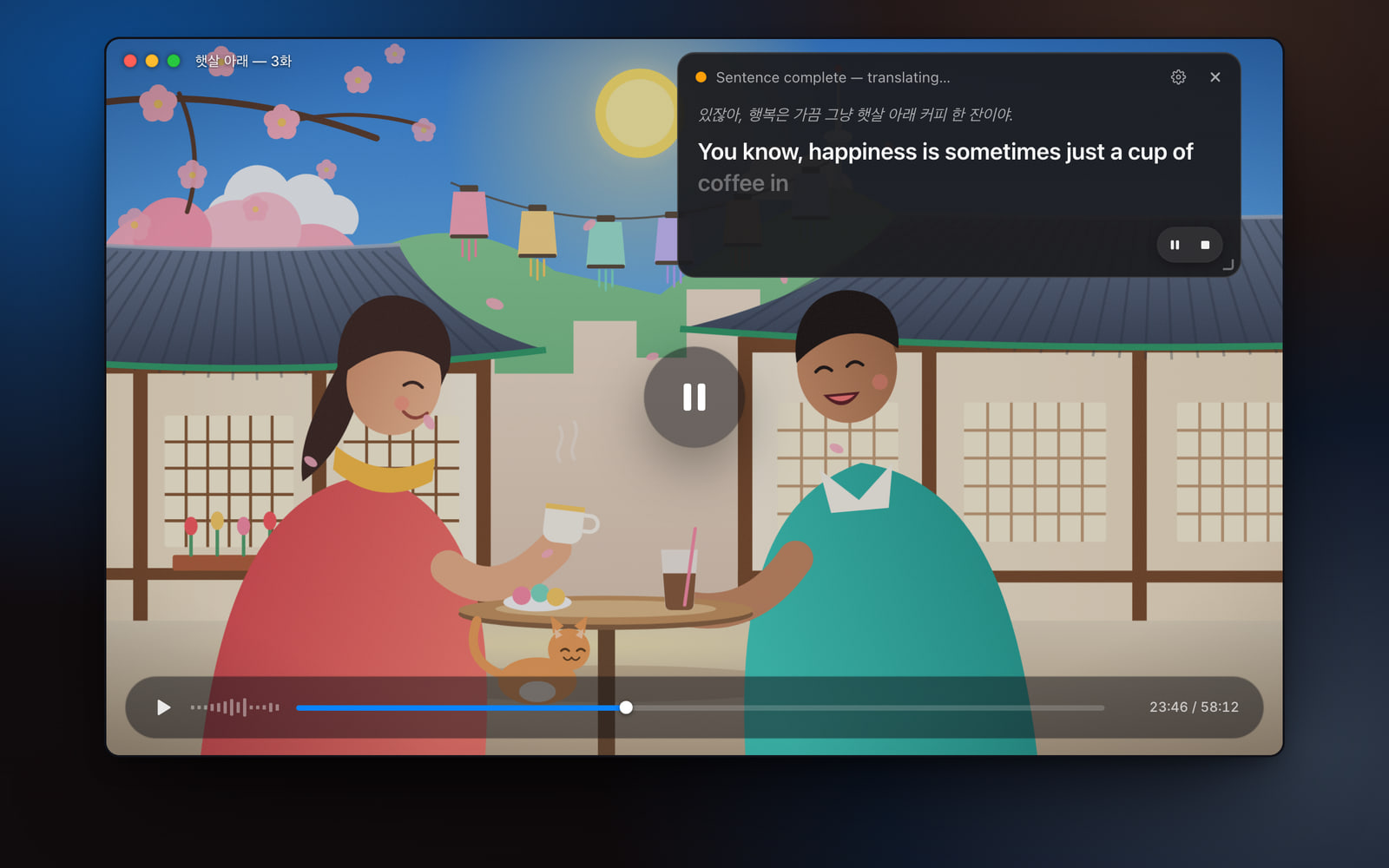
A Korean drama paused in its player at the end of a sentence; the app’s card beside it reads the sentence that was just spoken and “Sentence complete — translating…”.
The player pauses at the end of the sentence; the card reads “Sentence complete — translating…”.

02 · Transcription and translation

The sentence as it was said — and what it means.

First the sentence exactly as it was said — the transcript, with the slang, the dropped endings and the half-finished clause. Under it, a natural translation into your language, written and spoken aloud. Two lines, and you know what just happened.

  • A faithful transcript. What the character actually said, not a cleaned-up version — because that is the language you want to understand.

  • A translation that sounds like a person. Idioms land as idioms. The translation is spoken aloud as the text lights up, word by word.

  • Any pair of 57 languages. Learn Korean through English, French through Spanish, Japanese through Portuguese — your choice of both sides.

The card up close: the Korean sentence “있잖아, 행복은 가끔 그냥 햇살 아래 커피 한 잔이야.” and under it the translation “You know, happiness is sometimes just a cup of coffee in the sun.”
The Korean line as spoken, and under it the English translation.

03 · Vocabulary

Every word, explained.

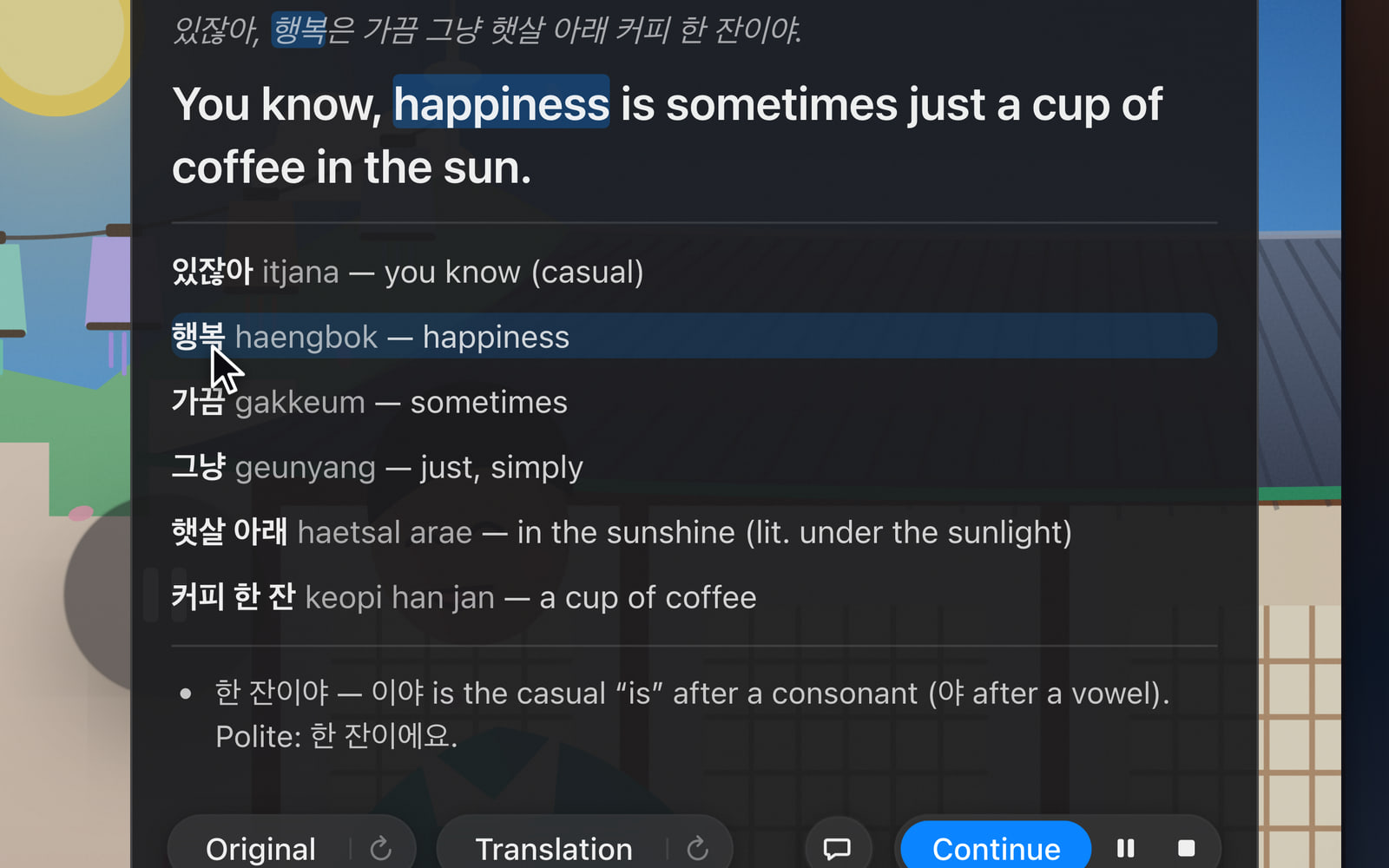
Every word and phrase of the sentence, in the order it was spoken, with its reading and its meaning in your language. Point at a word in the sentence and its line lights up; point at a line and the word lights up. The dictionary work is already done.

  • Readings included. Japanese, Korean and Chinese words come with romanized readings whenever your explanation language uses the Latin alphabet.

  • Linked both ways. Terms are listed exactly as they appear in the sentence, so each one points back to its place in the line — and in the translation.

  • Phrases, not just words. “햇살 아래”, “au soleil”, “para dos”: a unit of meaning gets its own line when that is how you would learn it.

The card, in detail
The vocabulary list of the card, one line per word with its romanized reading and meaning; the pointer rests on 행복 (haengbok, happiness), which is highlighted in the sentence above.
The vocabulary list; the pointer on 행복 highlights it in the sentence above.

04 · Grammar

One grammar note. The right one.

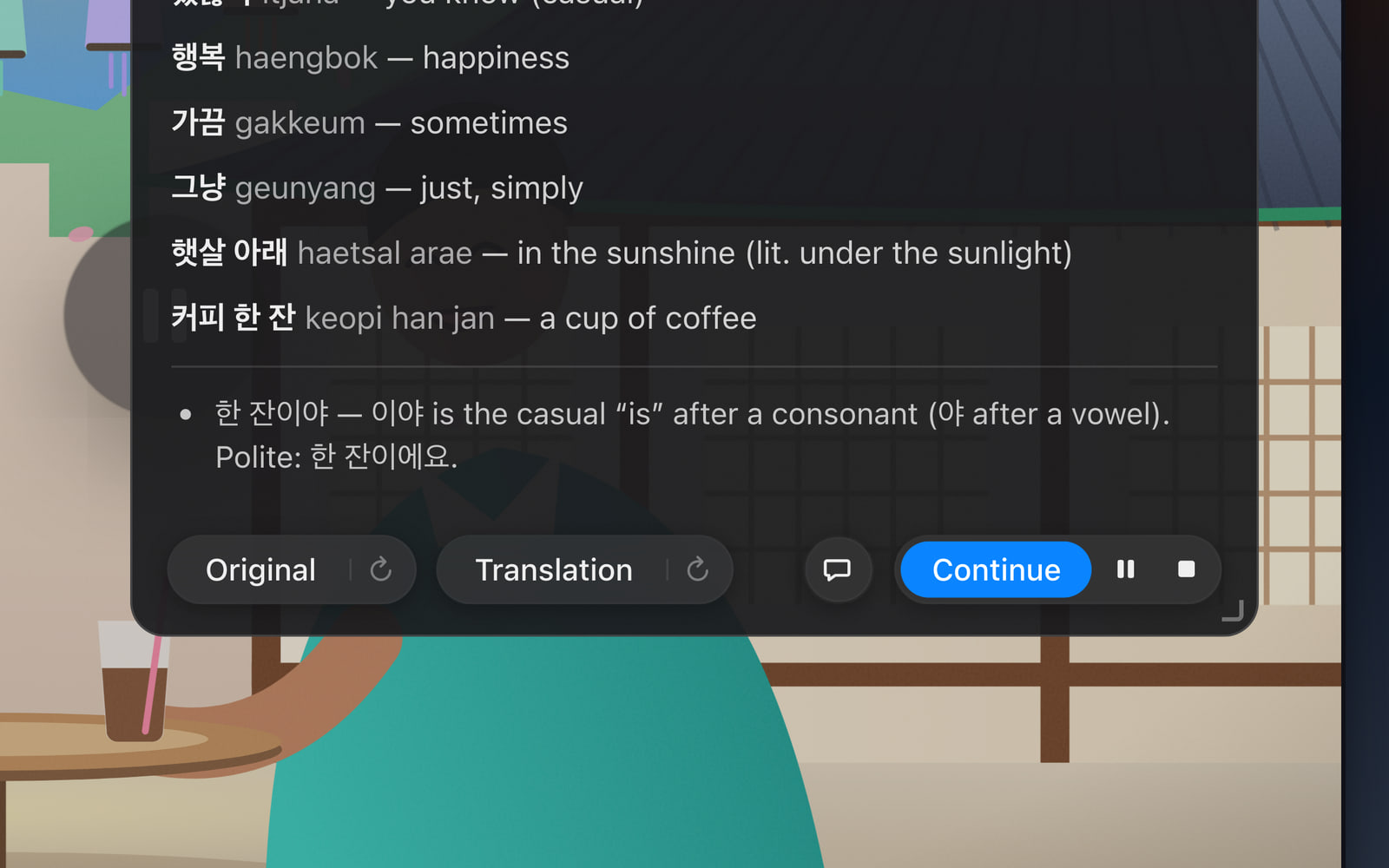
One grammar note per sentence — the construction that actually matters in this line, explained in two sentences, with the polite or the formal form beside the casual one. Not a chapter. The thing you would have asked a teacher.

  • The pattern, not the parse. Why this ending, why this particle, why the topic comes first — the note picks the one point worth noticing.

  • In your language. Written in the explanation language you chose, with the original forms quoted.

The card’s grammar note: 한 잔이야 — 이야 is the casual “is” after a consonant; the polite form is 한 잔이에요.
The grammar note: 이야 is the casual “is” after a consonant; the polite form is 이에요.

05 · Replay

Hear it again, word by word.

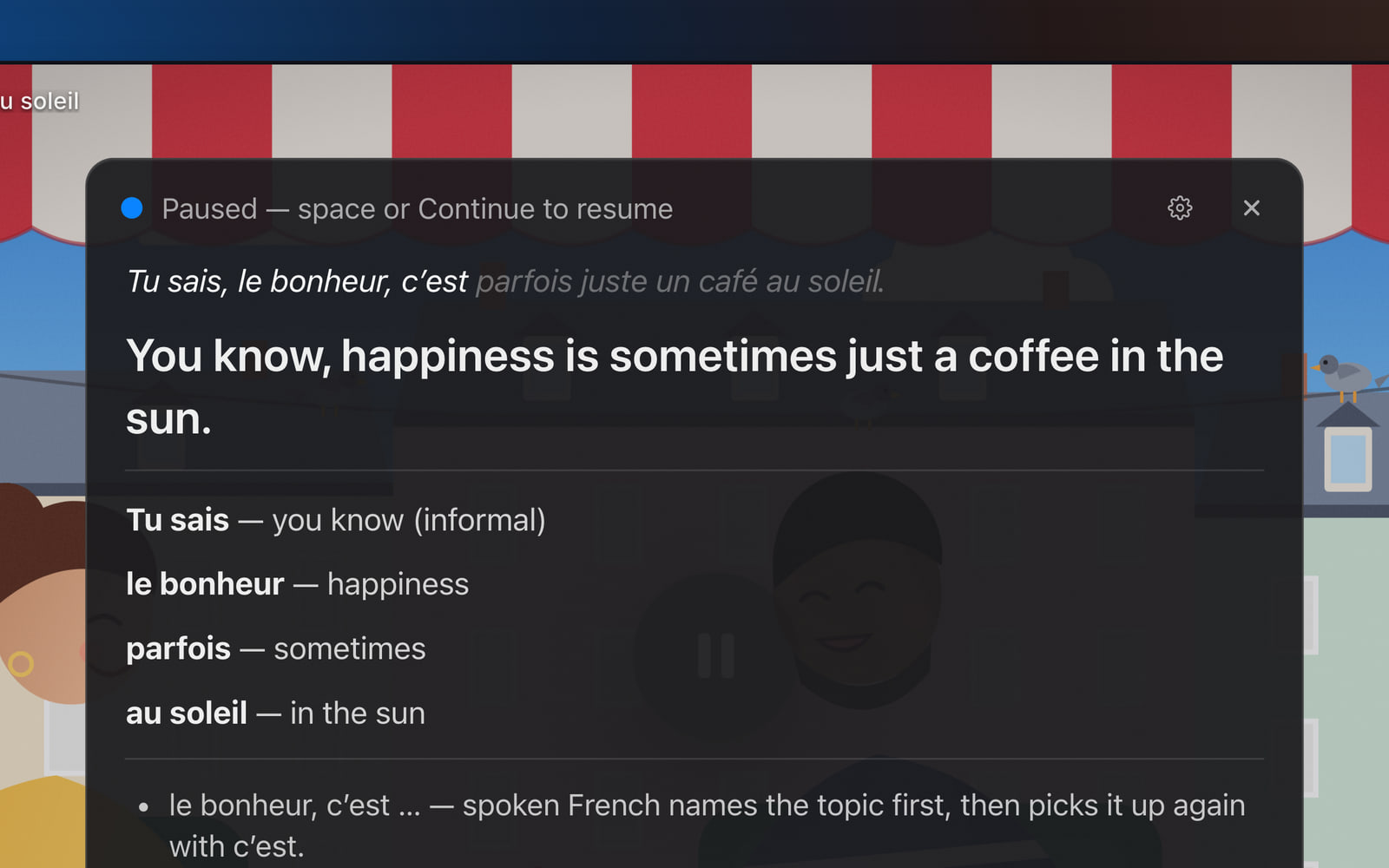
Press Original and the sentence plays again from the show, the text lighting up word by word as it is spoken. Press Translation and the app’s voice does the same in your language. Hear them side by side as often as you like, and set the pace of the voice — from half speed up.

  • Original and translation, side by side. Each button fills with progress as its clip plays; press again to stop.

  • Word by word. The karaoke highlight shows you which sound is which word — the part a textbook can never give you.

  • At your pace. Slow the spoken translation down to half speed, choose its voice, or turn it off and keep the text.

Replay the original and the translation
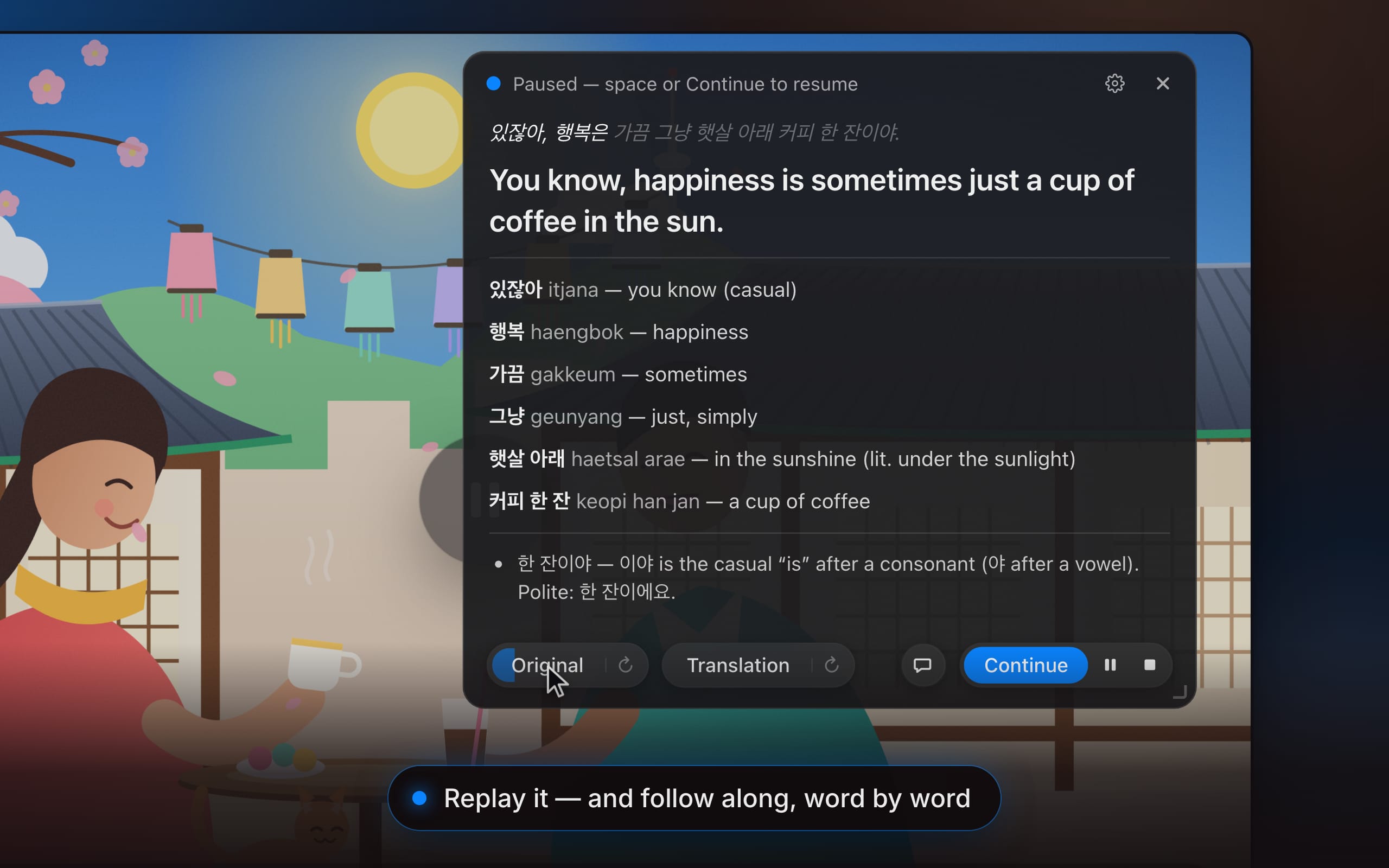
Replaying the original: the French sentence “Tu sais, le bonheur, c’est parfois juste un café au soleil.” lit word by word as the audio plays, the Original button filling with progress.
Replaying the original: the French line lights up word by word as the audio plays.

06 · Ask anything

Why this tense? Ask, right there.

Why this tense? What does that idiom really mean? How would a younger person say it? Open the chat under the card and ask. The answer knows the sentence, the scene’s language and the card — and it is saved with the sentence in your history.

  • About this sentence. The chat starts from the exact line on the card, so you never have to paste or explain context.

  • Saved with the sentence. Your questions and answers stay with the sentence in your study history, ready to re-read.

Chat about a sentence
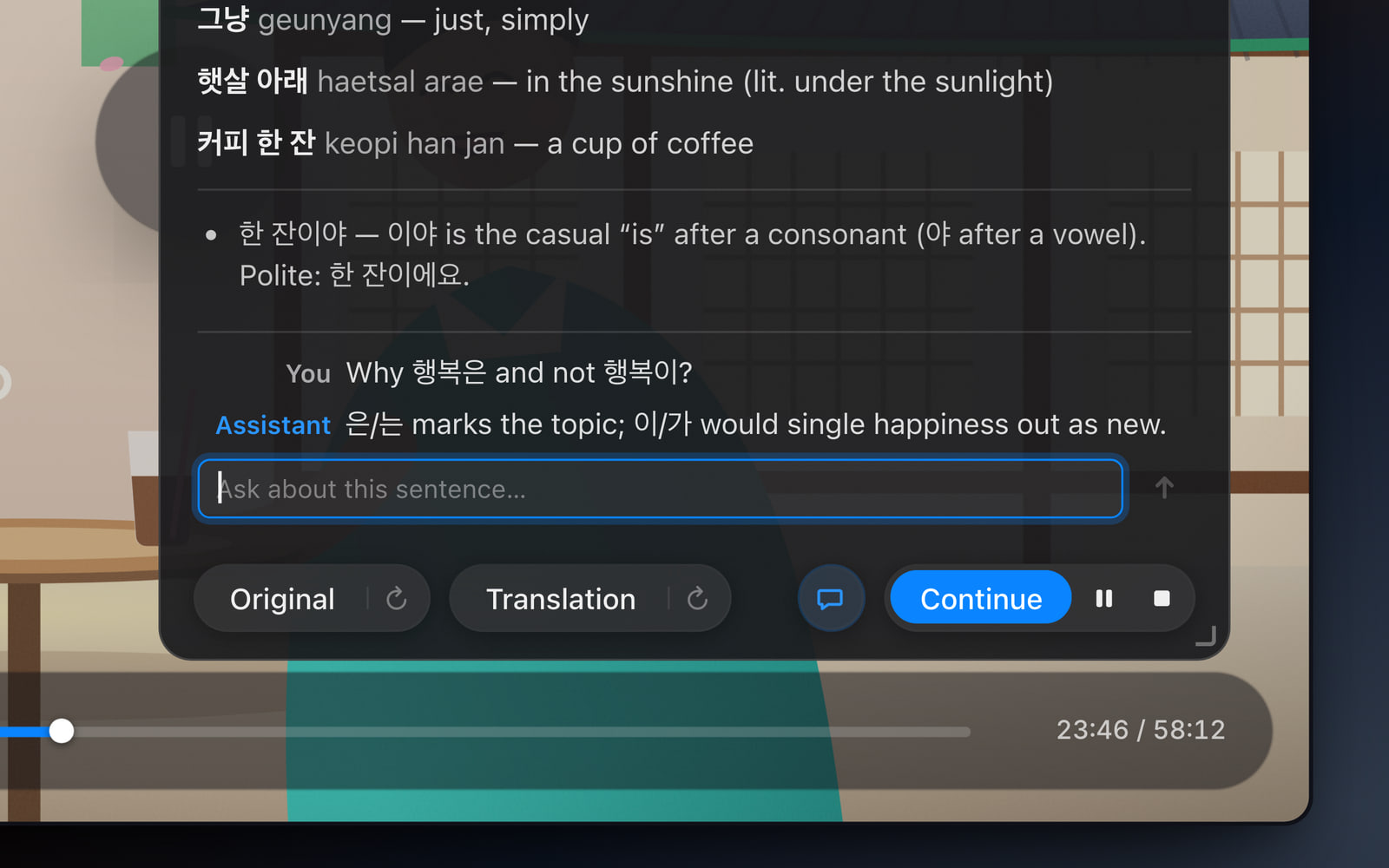
The chat panel under the card: the question “Why 행복은 and not 행복이?” and the answer that 은/는 marks the topic while 이/가 would single happiness out as new.
A question about the sentence, answered in the chat panel under the card.

Who it’s for

Learn or teach from the shows you already love.

RainbowSay is for people who spend real hours with a language — and would like those hours to be the fun ones.

Students

Turn tonight’s episode into homework you actually want to do.

  • Watch what you would watch anyway. Every sentence becomes a small lesson, with the words and grammar already looked up.
  • Hover over a word in the sentence and its vocabulary line lights up — and the other way round.
  • Everything you understood is saved with its audio, so the sentence from 11 pm is still there in the morning.

Teachers

Teach from the real thing, and stop on exactly the right sentence.

  • Play authentic material — news, interviews, a film scene — on the projector. The card does the board work: transcript, translation, vocabulary, grammar.
  • The spacebar means “translate now”: cut in before the speaker finishes to catch an idiom while it is fresh.
  • A saved session is lesson material: the sentences, the vocabulary, the audio clips.

Creators

Unpack your own footage, sentence by sentence.

  • Play a recording of yourself or your material: each sentence arrives transcribed, translated and glossed — the word-by-word overlay viewers pause for, ready to screen-record.
  • Replay the original and the translation with the highlight running, at the pace you choose.
  • Copy what you need from the saved session into your script or description.

Also worth knowing

The small things that make it yours.

  • Everything, or just one app

    Follow all the sound your Mac plays, or pick a single app so a notification or a second player never gets translated.

    Choose what to listen to
  • Silence costs nothing

    After about 30 seconds without speech the session stands by and stops sending audio. It wakes by itself when the dialogue returns, without clipping the first words.

  • The voice, the pace, or text only

    Choose the voice that speaks the translation, slow it to half speed, or turn the speech off and keep the card.

    Spoken translation settings
  • Kept on your Mac

    Every completed sentence — text, both audio clips, the chat — is saved locally in your study history, with a streak and a year-at-a-glance heatmap.

    Your study history

Questions

Fair questions, plain answers.

Something else? Write to [email protected] — a person answers.

Does Listening work with Netflix, YouTube, Disney+ or the app I use?

Yes. RainbowSay is a Mac app, not a browser extension: it listens to the sound your Mac is playing, so it works with any streaming service, any video in any browser, podcasts, lecture recordings — even a call. You can follow everything your Mac plays or pick one app. Auto-pause presses the Mac’s Play/Pause media key, so it works with every player that responds to that key.

Which languages can it transcribe and translate?

Listening works with 57 languages — Spanish, French, German, Italian, Portuguese, Japanese, Korean, Chinese, Hindi, Arabic and many more, down to Swahili, Welsh and Tamil. Pick the language you are learning and the language you want the explanation in; the pickers show the common ones, and any other can be typed in by name. For Japanese, Korean and Chinese the vocabulary comes with romanized readings when the explanation language uses the Latin alphabet.

The full list of languages

What is the difference between Listening and Subtitles?

Listening stops at the end of every sentence and gives you a card to study — translation, vocabulary, grammar, replay, chat. Subtitles never pause: they stream a live transcript and translation over the video in a transparent window, for reading along at full speed. The same app does both, and the same allowance pays for either.

About live Subtitles

Can I translate a podcast or an audio-only lecture?

Yes. Listening only needs sound. It pauses the podcast app at the end of each sentence the same way it pauses a video, and the card shows the transcript and translation. For a long lecture you can also turn auto-pause off and press the spacebar whenever you want the current sentence explained.

What does the spacebar do?

While a sentence is still being spoken, Space means “translate now”: the player pauses right there and you get a card for what has been said so far. While a card is showing, Space means Continue. The shortcut works from any app — that is what the Accessibility permission is for — and steps aside while you are typing in another window.

Does it translate music, ads and background noise too?

No. Music, singing, sound effects and noise are never “translated”: when a stretch of audio has no clear speech, the app discards it and the video simply resumes. For an ad break or a musical number you can also press the suspend button and nothing is sent until you unsuspend.

Does it record my screen or upload my videos?

Neither. RainbowSay captures audio only — macOS asks you for the “System Audio Recording Only” permission, and the app has no screen recording at all. To transcribe and translate, the audio of a running session is processed by our AI provider, OpenAI. Your history — sentences, clips, chats — is stored on your Mac, not on our servers.

Read the privacy policy

Is Listening free?

Every new account gets one-time starter credit — no credit card — to spend on Listening, Speaking or Subtitles. When it is used up, you pick a plan in the app. Students, teachers and creators can email [email protected] for extra free credit first.

See plans and pricing

Which Macs are supported?

Macs with Apple Silicon running macOS 14.2 or later. The app lives in the menu bar and floats a small card over whatever you are watching, including fullscreen video.

Download and setup

Press play on something you love.

Download RainbowSay, start Listening, and let the next episode teach you — one sentence at a time.

Start learning from what you watchFree to start · macOS app · Apple Silicon

No credit card · audio only, never your screen · your history stays on your Mac